
How to Tell If My Phone Is Unlocked A Traveler's Guide
So, you need to figure out if your phone is unlocked. Good news: it’s usually pretty simple. For iPhone users, the answer is often hiding in your settings menu—look for a "No SIM restrictions" message under Settings > General > About. If you're on Android, the gold-standard test is just as easy: pop in a SIM card from a different carrier. If you can make a call, you’re golden.
The Fastest Ways to Check if Your Phone Is Unlocked
Before you jump ship to a new carrier or start packing for that trip abroad, figuring out your phone's lock status is a non-negotiable first step. An unlocked phone is your ticket to freedom—it lets you use any compatible carrier's SIM card, which is the key to dodging those outrageous international roaming fees. This kind of flexibility is a big deal, and it's fueling a massive market for phone unlocking services.
In fact, the global online phone unlocking service market is on track to hit $330.61 billion by 2025, with an annual growth rate of 8.6%. That boom is mostly driven by international travelers and digital nomads who depend on local SIMs and eSIMs to stay connected without breaking the bank. You can find more insights about this growing market and what it means for modern travelers.
Quick Visual Cues for Your Device
For most people, a quick dive into the settings menu is all it takes to get an answer. You don't need to be a tech wizard; you just need to know what to look for. Both iPhones and Androids have little clues that can tell you everything you need to know in less than a minute.
This little decision tree gives you a visual on the quickest way to figure out your phone's status.
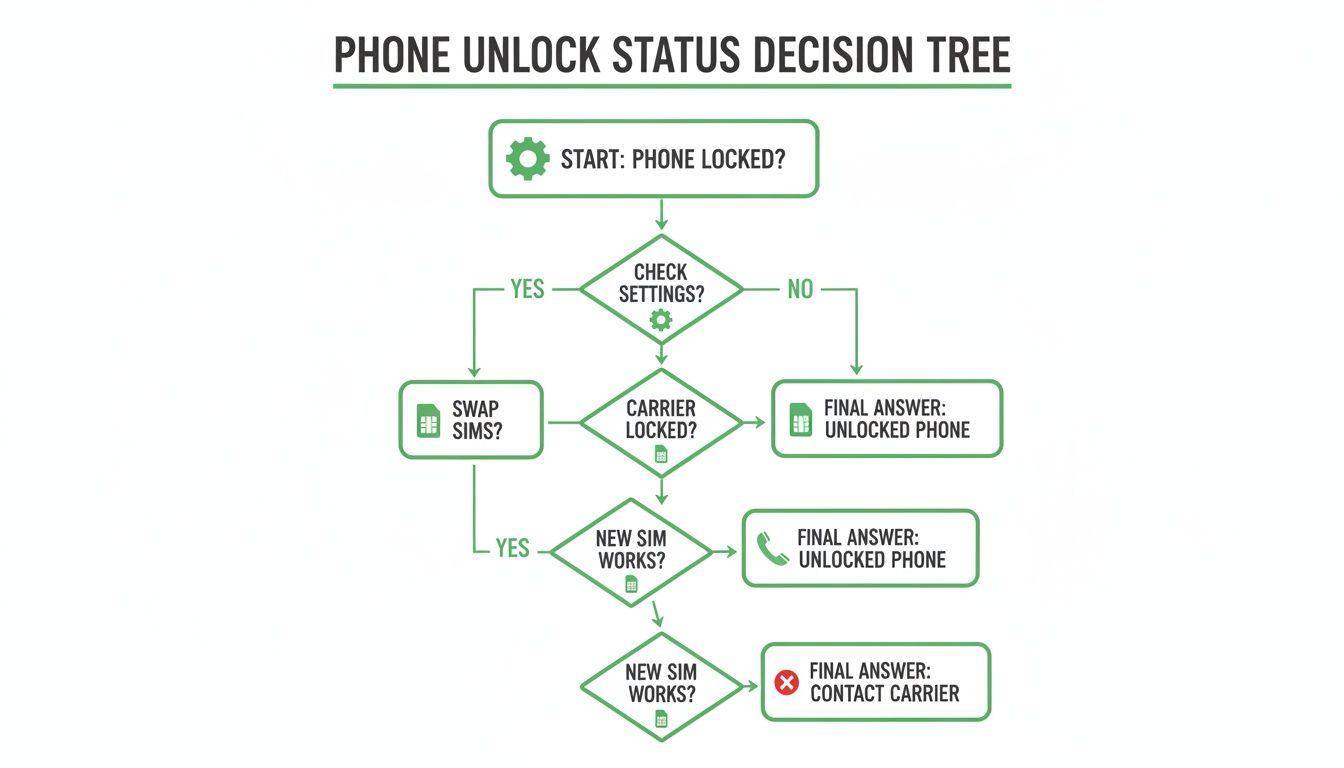
As you can see, checking your settings is the fastest first move, but swapping SIM cards is the test that gives you a definitive yes or no.
To make things even clearer, here's a quick cheat sheet of what to look for right on your device.
Quick Unlock Status Check At a Glance
Sometimes, all you need is a quick look inside your phone's settings to get the answer. This table breaks down the most direct visual cues for both iPhones and Androids.
| Device Type | What to Look For (Unlocked) | What You Might See (Locked) |
|---|---|---|
| iPhone | The message "No SIM restrictions" under the Carrier Lock section. | "SIM locked" or a specific carrier's name listed in the same section. |
| Android | An option to "Choose network" or "Automatically select network" is available. | Error messages like "Invalid SIM" or "SIM Not Supported" appear with a new SIM. |
Think of this as your 30-second check. If you see the "Unlocked" indicators, you're almost certainly good to go. If you see the "Locked" messages—or nothing conclusive at all—it’s time to move on to the more hands-on tests.
Check Right on Your Phone: A Visual Guide to Your Settings
One of the fastest, most definitive ways to know if your phone is unlocked is to just ask it. Buried in your phone's settings menu is usually a clear-cut answer, saving you the trouble of finding a spare SIM card or calling up your carrier.
This is my go-to first step. It takes less than a minute, requires zero extra equipment, and works on most modern smartphones. Whether you’re on Team iPhone or Team Android, a few taps should tell you everything you need to know.
Finding the Answer on Your iPhone
Apple makes this incredibly easy. The info is tucked away in your iPhone’s “About” section, and they don’t use confusing language. It’s a simple yes-or-no answer.
Here's the path to find it:
- Pop open the Settings app.
- Tap on General.
- Go into About.
- Scroll down to the Carrier Lock section.
You’re looking for one very specific phrase here.
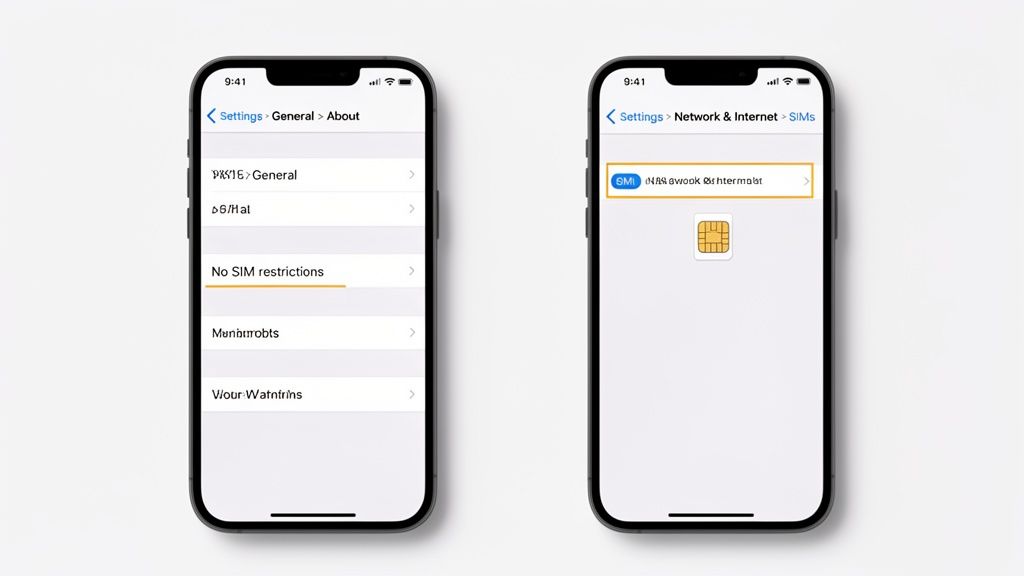
If you see the magic words “No SIM restrictions,” then you’re golden. Your iPhone is unlocked and ready to work with any carrier you choose. If it says "SIM locked" or names a specific carrier, it’s still tied to its original network.
Uncovering the Status on Android Devices
Android is a bit more of a wild card. Because of all the different manufacturers (Samsung, Google, OnePlus, etc.) and software versions, there isn't one universal spot to check. But you can still find strong clues by digging into your network settings.
You're essentially looking for a menu that lets your phone search for other mobile networks.
While the exact path can differ, it's usually one of these two routes:
- Route 1: Go to Settings > Network & Internet > SIMs (or a similar name).
- Route 2: Head to Settings > Connections > Mobile Networks > Network Operators.
Once you find that "Network Operators" or a similar menu, try running a manual search for networks. If your phone scans and shows a list of different carriers—like T-Mobile, AT&T, Verizon, and others—that’s a huge sign it’s unlocked. A locked phone would typically refuse to even search for or display networks other than its own.
Pro Tip: Being carrier-unlocked is a must if you plan to use an eSIM for travel. An unlocked phone gives you the freedom to install a digital SIM from another provider. If you're curious whether your device even supports this tech, check out our guide on how to know if your phone supports eSIM. It's a game-changer for staying connected abroad without the roaming fees.
The Ultimate SIM Card Swap Test
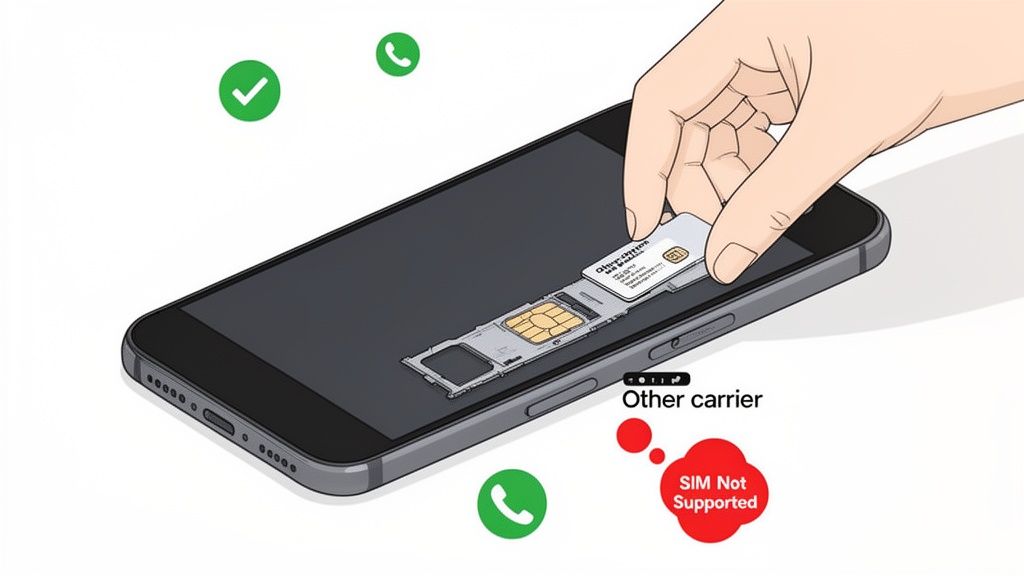
When the settings menu is being vague or you just want 100% certainty, it’s time for the most definitive test there is: swapping the SIM card. This method is the gold standard for a reason. Its logic is beautifully simple—an unlocked phone will accept a SIM from any carrier, while a locked one will reject it flat out.
Think of it as giving your phone a little pop quiz. By popping in a SIM from a different network, you're directly asking it, "Are you tied to one carrier, or are you free to mingle?" The answer you get is almost always immediate and unmistakable.
Performing the SIM Swap Safely
Before you get started, you’ll need two things: your phone’s SIM ejector tool (a small paperclip works in a pinch) and a SIM card from a different carrier. The easiest way to get your hands on one is to borrow it from a friend or family member who uses another network.
Here’s how to run the test without any drama:
- Power Down Your Device: Always turn your phone completely off before messing with the SIM card. It’s just good practice to prevent any potential glitches.
- Locate and Open the SIM Tray: On most phones, the SIM tray is a tiny slot on the side. Use the ejector tool to gently push into the pinhole, and the tray will pop right out.
- Swap the SIM Cards: Carefully take out your current SIM and place the borrowed one into the tray. Pay attention to how it’s aligned—it only fits one way.
- Power Up and Observe: Slide the tray back in and turn your phone on. This is the moment of truth.
A Real-World Scenario: Picture this—you're getting ready for a trip to Japan and plan to buy a local SIM when you land. Before you go, you borrow your friend's T-Mobile SIM and pop it into your AT&T iPhone. This quick five-minute check can save you from the headache of discovering your phone is locked only after you’ve landed 6,000 miles from home.
Interpreting the Results
Once your phone boots back up, the answer will be crystal clear. You're looking for specific signals that tell you whether the swap worked or not.
A successful test (meaning your phone is unlocked) will show the new carrier's name at the top of your screen, and you'll see signal bars appear. To be absolutely sure, try making a quick phone call. If it goes through, congratulations—your phone is unlocked and ready for adventure.
On the other hand, a failed test means your phone is locked. You'll likely see an error message that leaves no room for doubt, like:
- "SIM Not Supported"
- "Invalid SIM Card"
- "Network Locked"
If you see any of these warnings, your phone is definitely locked to its original carrier. This test is especially important for travelers planning to use eSIMs, as the exact same network restrictions apply. For a deeper dive, our guide explains more about what an eSIM is and how it works.
Using Your IMEI to Verify Lock Status
 If swapping SIM cards isn't an option, or you just want a definitive answer, your phone’s IMEI is your next best tool. Think of this unique 15-digit number as your phone’s fingerprint on the mobile network. It holds all the critical details about your device, including its official lock status.
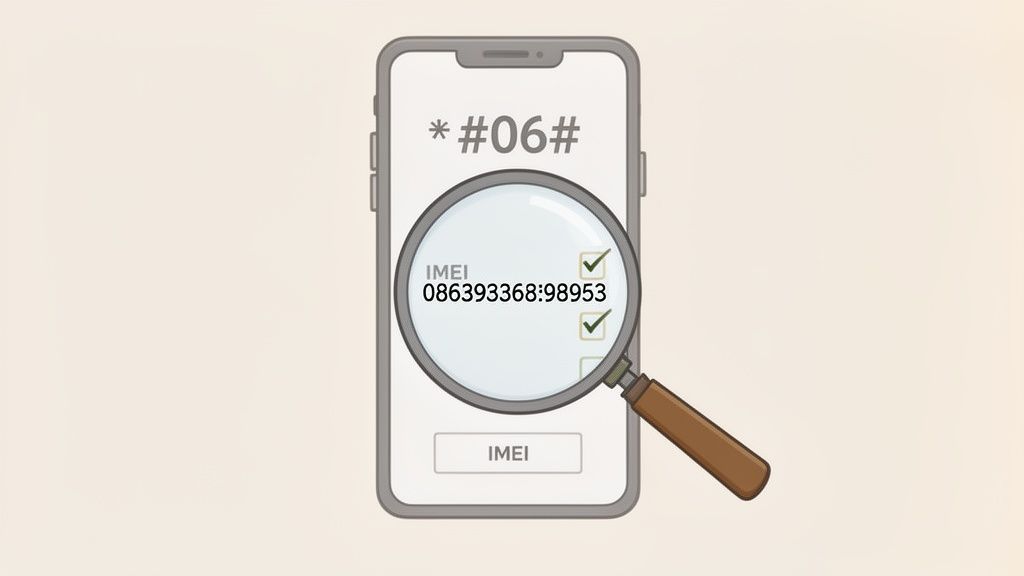
Finding your IMEI couldn't be easier. Just pop open your phone’s dialer and punch in *#06#. Your IMEI will instantly appear on the screen. It's a good idea to jot it down, as you'll need it for the next steps.
Contacting Your Carrier Directly
The most straightforward method is to just call your current (or even your previous) carrier and ask them. With your IMEI ready, a customer service representative can pull up your device’s history in their system and tell you its status on the spot.
This works best if you're the original owner and still have an account with them. They won't just tell you if it's locked—they can also tell you if it's eligible to be unlocked.
What to Say: Keep it simple and direct. Try something like, "Hi, I'm planning a trip and need to check if my phone is carrier-unlocked. I have the IMEI right here. Could you look it up for me?"
Using an Online IMEI Checker
Don't want to deal with customer service hold times? Or maybe you bought the phone secondhand and have no idea who the original carrier was. This is where third-party IMEI checking services come in handy. These online tools tap into global device databases to give you a detailed report.
Most sites offer a free basic check that confirms the phone’s model and maybe its original sale date. For the lock status, you'll likely need to pay a small fee for a full report. A good service will give you crucial information:
- Carrier Lock Status: The definitive yes or no answer.
- Original Carrier: Which network the phone was first tied to.
- Blacklist Status: A critical detail that tells you if the phone has been reported lost or stolen.
This is the perfect route when you're not the original owner or just want a fast, anonymous answer without a phone call.
An unlocked phone isn't just about travel freedom—it holds its value way better. In fact, industry research shows that unlocked phones are expected to dominate the secondary market by 2026, selling faster and for higher prices because anyone, anywhere, can use them. You can learn more about how much value this adds from resale value insights on UnlockBase.com.
So, which IMEI method should you pick? It really just depends on your situation.
IMEI Check Methods Compared
Here's a quick breakdown to help you decide which path makes the most sense for you.
| Method | Pros | Cons | Best For |
|---|---|---|---|
| Contacting Your Carrier | Provides an official, direct confirmation for free. | Can involve long wait times for customer service. | Original owners who want an official answer from the source. |
| Online IMEI Checker | Fast, anonymous, and provides extra details like blacklist status. | The full, detailed reports usually have a small fee. | Secondhand phone owners or anyone needing a quick, no-hassle check. |
Ultimately, both of these methods get you to the same place: certainty. Whether you're prepping for a big trip, getting ready to sell your phone, or just plain curious, using your IMEI is a rock-solid way to find out if it's unlocked.
What to Do if Your Phone Is Locked
So, you’ve run the tests and the verdict is in: your phone is locked. It’s a frustrating discovery, especially with travel plans on the horizon or a new SIM card sitting on your desk. Don't worry, though—this is almost always a solvable problem.
Getting your device unlocked is usually a straightforward process, though it does require a bit of patience. The first—and only legitimate—move is to contact the carrier your phone is locked to. While third-party unlocking services exist, they can be risky and might even void your warranty. Always start with the official source.
Preparing to Contact Your Carrier
Before you pick up the phone or open a live chat, a little prep work will make the entire process go much smoother. Carriers have specific requirements you’ll need to meet before they’ll agree to unlock your device. Having your information ready will save you a ton of back-and-forth.
You will almost certainly need these details on hand:
- Your Account Information: This includes the account number, password or PIN, and the phone number tied to the device.
- The Phone's IMEI: As we covered, you can find this unique 15-digit number by dialing *#06#.
- Proof of Ownership: Be ready to confirm you're the original account holder.
It also helps to understand the eligibility rules that most carriers enforce. These are typically non-negotiable, and if you don’t meet them, your request will likely be denied.
A Quick Reality Check: The most common reason a carrier denies an unlock request is because the device isn't fully paid off. Carriers often subsidize phone costs, and they lock devices to ensure they recoup that investment through your service plan. If you're still on a payment plan, you'll need to pay the remaining balance first.
Understanding the Unlock Eligibility Rules
While policies can vary slightly between carriers like Verizon, AT&T, and T-Mobile, the core requirements are nearly universal.
Generally, your phone must be:
- Fully Paid For: The device can't be under an active installment plan or lease agreement.
- Active for a Minimum Period: Your phone usually needs to have been active on the carrier’s network for a set time, often between 60 and 90 days.
- In Good Standing: The account associated with the phone must be active, with no past-due balances.
For those who bought their phone secondhand, the process can get trickier. If the previous owner didn't meet these terms, you might inherit the problem. This is exactly why it’s so critical to confirm a phone is unlocked before buying it used.
And if you discover your phone is locked but you've also forgotten the passcode, you might need to figure out how to unlock your phone without a password before you can even start the carrier unlock process. Knowing these steps can save you from a headache and help you avoid costly international fees. For more on that, our guide on how to avoid roaming charges has practical advice for travelers.
Once your request is submitted and approved, the carrier will process it. This can take anywhere from a few hours to several business days. You’ll typically get an email with final instructions, which often involves little more than inserting a new SIM card.
Common Questions About Unlocking Your Phone
Even after you've run all the tests, a few nagging questions can pop up. Getting these details straight is the key to having total confidence before you switch carriers or head overseas.
Let's walk through some of the most common uncertainties people have when trying to figure out if their phone is truly free.
One of the biggest questions is whether an unlocked phone automatically works with every carrier. While being "unlocked" frees your phone from its original carrier, it still needs to be compatible with the new network's technology (like GSM or CDMA) and its specific frequency bands.
The good news? Most modern smartphones are built to be global citizens, compatible with a huge range of networks worldwide.
Another point of confusion is the cost. Do you actually have to pay someone to unlock a phone you already own?
Will I Be Charged for an Unlock Code?
Here’s the short answer: if you're the original owner and you've met your carrier’s requirements, they are legally obligated to unlock your phone for free.
Fees usually only enter the picture if you turn to a third-party unlocking service, which is often a risky and unnecessary step.
The only time your carrier might ask for money is if you still have an outstanding balance on the device itself. Once that phone is paid off and your account is in good standing, the unlock process shouldn't cost you a dime.
The most important takeaway is this: A phone that is fully paid for and has met the minimum service period should be unlocked by your carrier at no charge. Don't let a customer service agent tell you otherwise.
Can a Locked Phone Use an eSIM?
This is a critical question for modern travelers, and the answer is a hard no.
Think of an eSIM as just a digital version of a physical SIM card—all the same carrier lock rules apply. A phone that’s locked to a specific carrier will flat-out refuse to activate an eSIM from any other provider.
This is exactly why you must confirm your phone is unlocked before you buy a travel eSIM. You need a carrier-unlocked device to tap into the convenience and savings of using eSIMs abroad.
Is Unlocking a Permanent Change?
Yes, absolutely. Once a carrier officially unlocks your phone, it stays unlocked for good. The change is permanent and won't be undone by software updates or even a full factory reset. This gives you lasting freedom to choose your network, wherever you go.
For frequent flyers, an unlocked phone is just one piece of the puzzle. You can also explore essential travel gear to make your trips even smoother.
Ready to put your unlocked phone to use and ditch expensive roaming fees? At eSimGuide.com, we compare hundreds of eSIM plans from the world's top providers. We do the work so you can find the perfect deal for your next destination. Find your travel eSIM today and get connected the moment you land.


